What Catch-Up shows
Stories that are available for the active Hootling and have not been read yet
 Daily Hoots
Parent Guide
A simple step-by-step guide for setting up Hootlings, choosing news, reading stories, using Catch-Up, taking quizzes, and checking progress.
Find Quickly
Setup
A Hootling is a child profile inside the parent account. Each Hootling has separate reading progress, quiz progress, badges, country interests, and PIN.
You can have more than one Hootling under the same parent account. This keeps siblings' progress separate
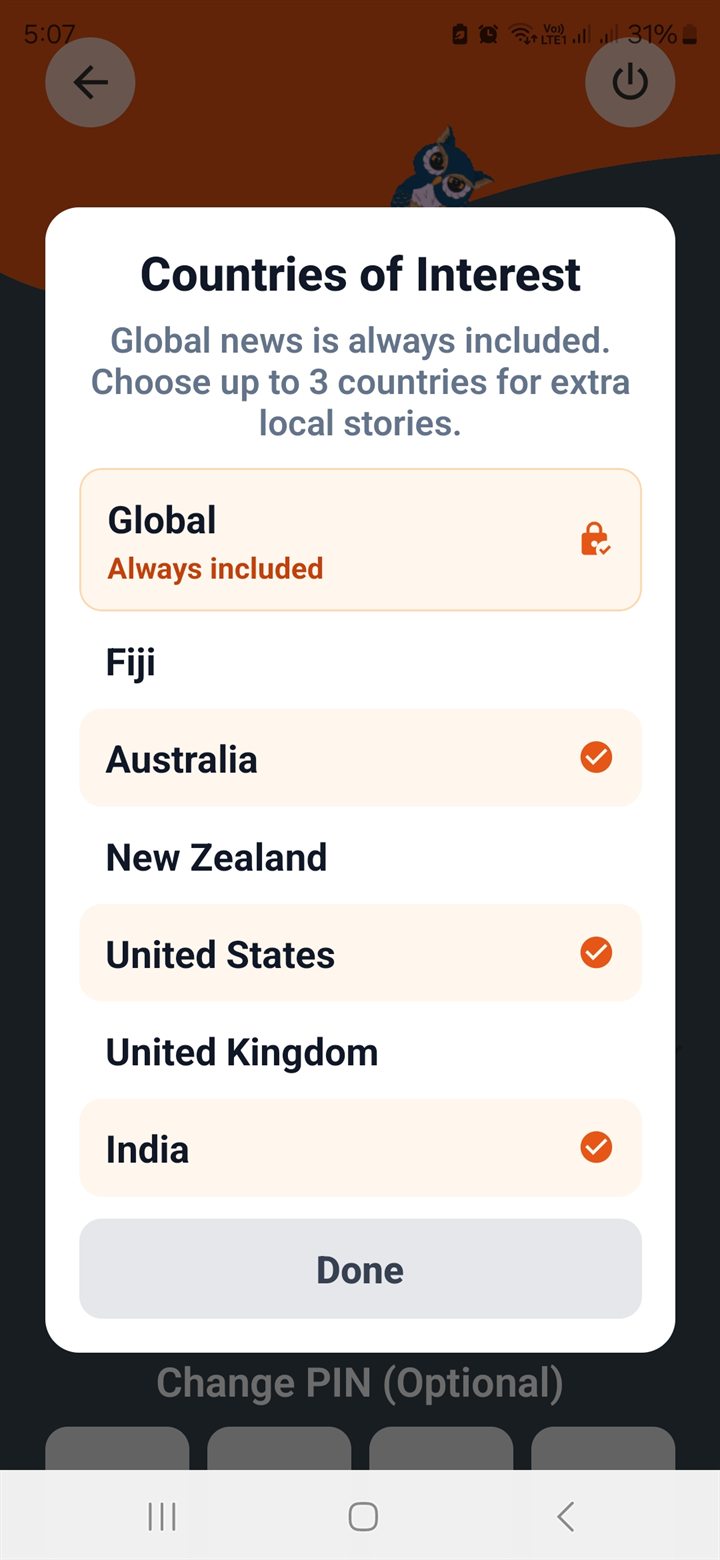
Country Choices
Global news is always included. Country choices add local stories from selected places when suitable stories are available.
If a country has fewer child-suitable stories on a particular day, the app may show fewer items rather than fill the screen with weak stories.
Choose News
All News gives the widest view across available categories and selected countries. The selected section is remembered for the active Hootling.

Reading News
Daily Hoots prepares different reading versions of the same story for different ages. Younger readers get simpler wording, while older readers get more context.
The aim is calm, clear explanation of real events, not long articles or adult-style news
Catch-Up
Catch-Up shows stories the active Hootling has not read yet. It is a quick way to find missed stories without searching through every section.
Stories that are available for the active Hootling and have not been read yet
It is not a badge history, quiz history, or general notification archive
Quiz And Progress
Quizzes are based on recent Daily Hoots stories. They work best after a child has read a few stories
Badges reward reading and quiz effort over time. Badge celebrations may appear when a new badge is earned
Progress shows reading activity, quiz effort, and badges for the active Hootling
Daily Timing
Daily Hoots usually prepares fresh stories in the morning for each supported country. Global stories are refreshed separately during the day.
The app prefers fewer useful stories over filling the screen with weak or unsuitable items
Safety And Help
Children cannot chat, post content, contact strangers, or use social networking features inside Daily Hoots.
PINs help children enter their own Hootling profile. Parents can manage Hootlings from the parent account.
Use the Support page for app help and account questions.